
 Orqestria for macOS
Your AI team.
At home on your Mac.
Turn your next idea into working software. Bring your AI tools, your projects and your team together in one place.
The download is temporarily unavailable. Please try again shortly.
Try againmacOS 13.5 or later · Apple Silicon and Intel
Orqestria for Windows
Your AI team.
At home on your Windows PC.
Turn your next idea into working software. Bring your AI tools, your projects and your team together in one place.
The download is temporarily unavailable. Please try again shortly.
Try againWindows 11 (x64 and ARM64) · Managed WSL2 Linux engine
Orqestria for macOS and Windows
Your AI team.
Available for both Mac and Windows.
Orqestria is a desktop application available for both macOS and Windows 11 (x64 & ARM64). Open this page on your computer, or choose your system below:
macOS
macOS 13.5 or later · Apple Silicon and Intel
The download is temporarily unavailable. Please try again shortly.
Windows 11
Windows 11 (x64 and ARM64) · Managed WSL2 Linux engine
The download is temporarily unavailable. Please try again shortly.
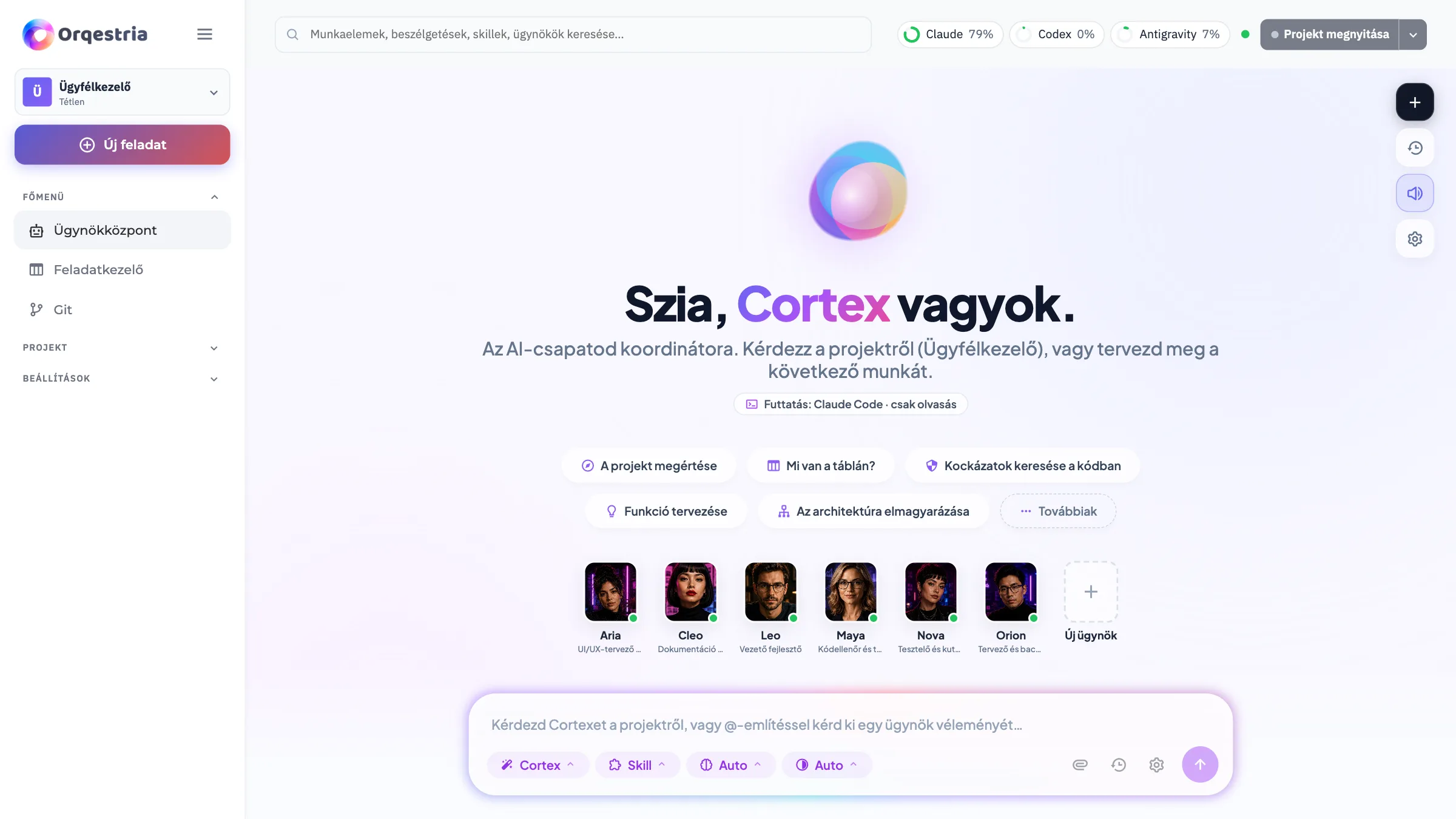
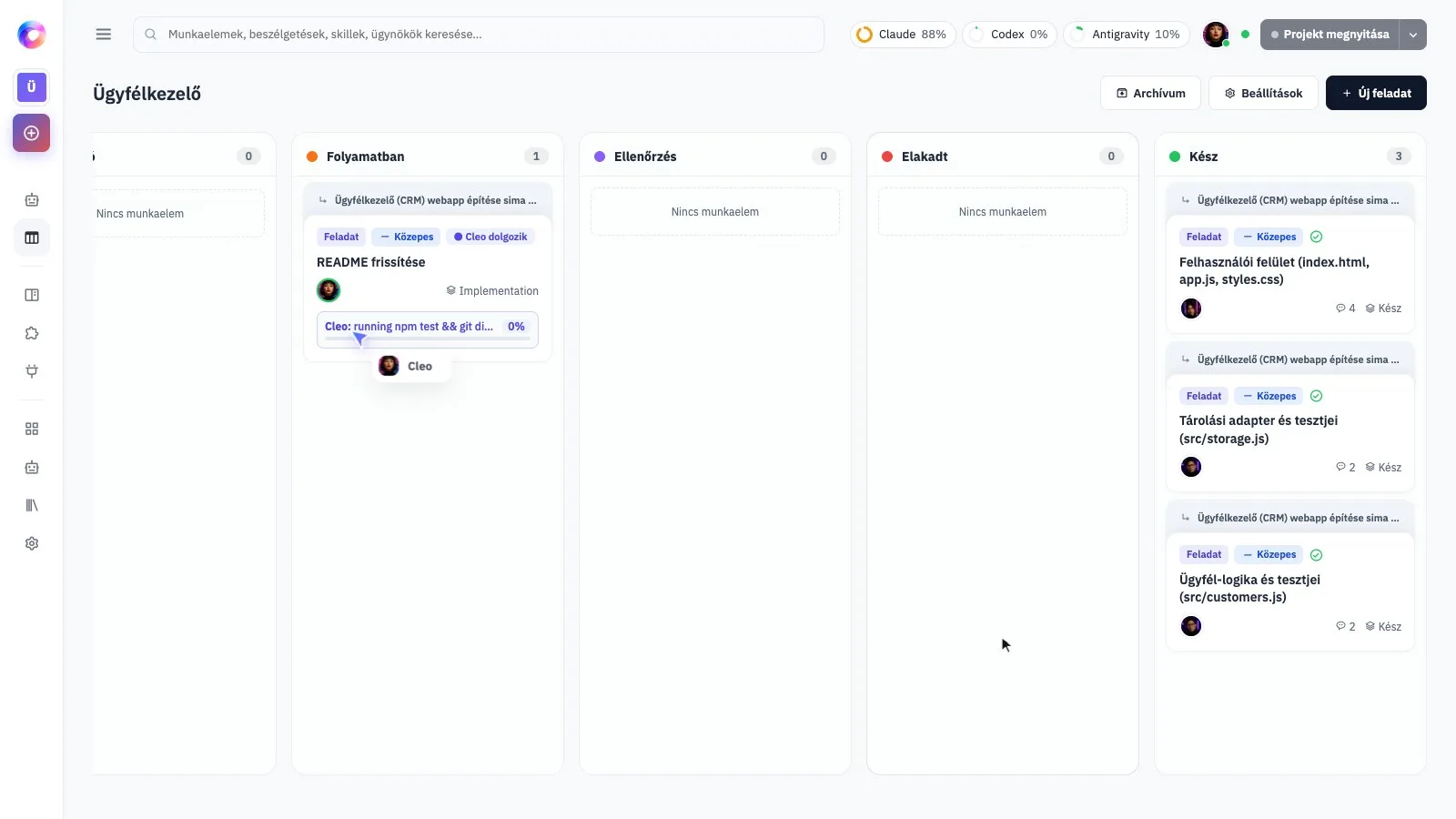
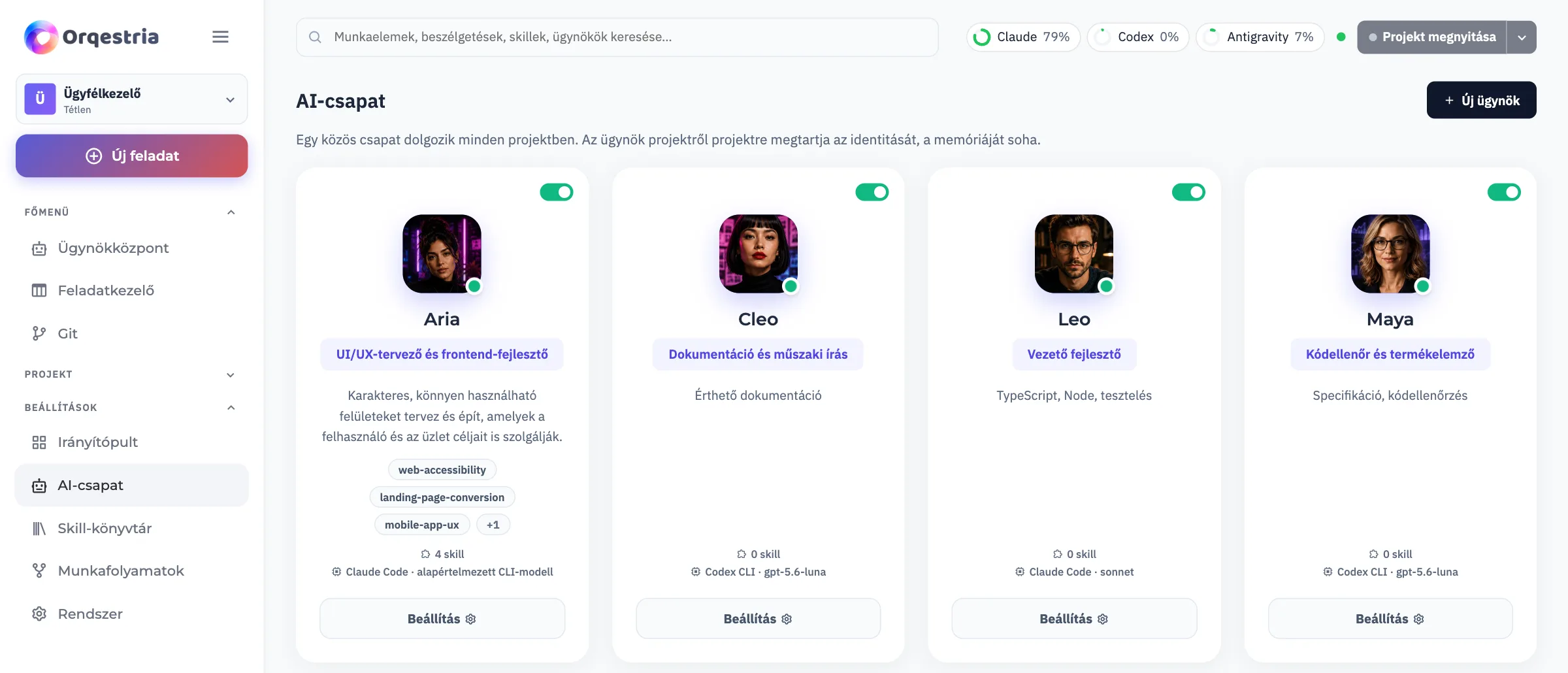
A real workspace. One coordinated team.
Product screenshots in Hungarian. The app is available in English, Hungarian and German.
Works with your own AI subscriptions
Your projects stay yours
Work with your files on your own computer. Your AI providers process requests through your connected accounts.
One team, from idea to delivery
Plan with Cortex. Let your agents build, review, test and document the work together.
You set the direction
Follow each task, review changes and decide what happens next.
Install Orqestria on your Mac.
The current beta is not yet notarized by Apple. Follow these steps for the download from orqestria.com.
-
Move Orqestria into Applications
Use Download to get the .dmg file. Open it, then drag Orqestria into Applications.
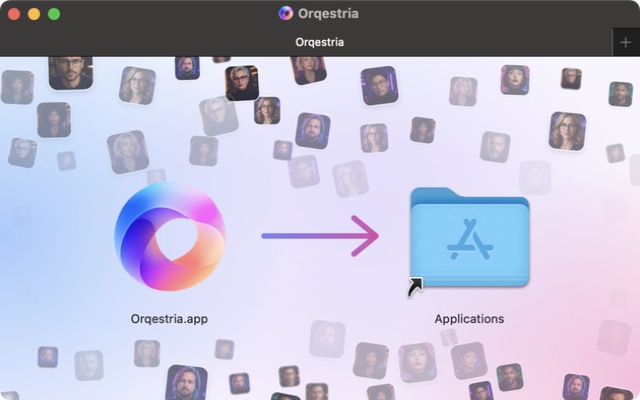
Open screenshot full size -
Open the app once
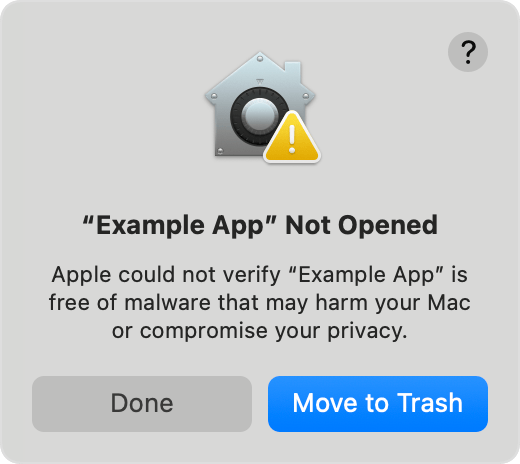
Open Orqestria from Applications. If Apple says it cannot verify the app, choose Done, not Move to Trash. Continue only with your download from orqestria.com.
Open screenshot full size -
Allow Orqestria to open
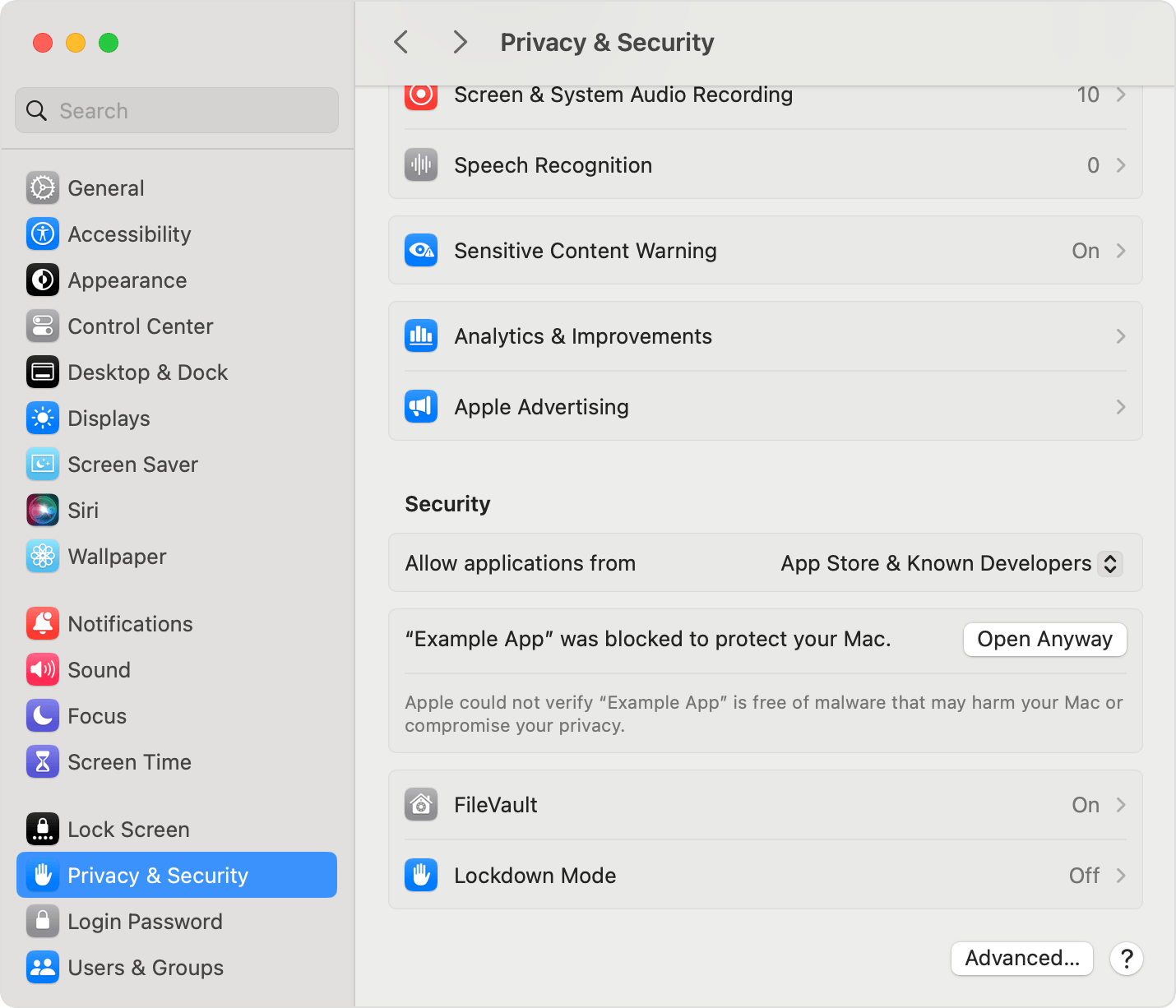
Go to System Settings → Privacy & Security. Scroll to Security and choose Open Anyway beside Orqestria. This option is available for about an hour after the opening attempt.
Open screenshot full size -
Confirm and get started
Confirm Open or Open Anyway if prompted, using your Mac password or Touch ID when requested. Follow setup to activate your licence and connect your AI accounts.
Cannot find Open Anyway?
Try opening Orqestria again, then reopen Privacy & Security. On a managed Mac, contact your administrator.
A new beta downloaded through your browser may need approval again. Your data in ~/.orqestria stays in place.
For warnings about malware or a damaged app, stop and contact support. No global security changes are needed.
The installer image shows Orqestria. The macOS Sequoia examples are from Apple; Example App represents Orqestria. Labels and layout may vary on your Mac. Apple’s official installation help
Before you get started
Need a hand? Get in touch
Will it work on my Mac?
Orqestria supports macOS 13.5 or later. The same installer works on both Apple Silicon and Intel Macs.
Will it work on my Windows PC?
Orqestria runs on Windows 11 (x64 and ARM64) with a managed WSL2 Linux engine. The app guides you through checking prerequisites on first launch.
Do I need an AI subscription?
You use your own accounts for supported AI tools such as Claude Code, Codex and Antigravity. Provider subscriptions and usage are separate from the Orqestria licence.
How do I get a licence?
You need a licence to activate Orqestria. Explore the packages for licence and onboarding options. Explore packages