Lessons · 2/5
Install Orqestria and connect your AI tools
Prepare your Mac, open the app and connect the AI tools you already use.
Download, then move the app into Applications
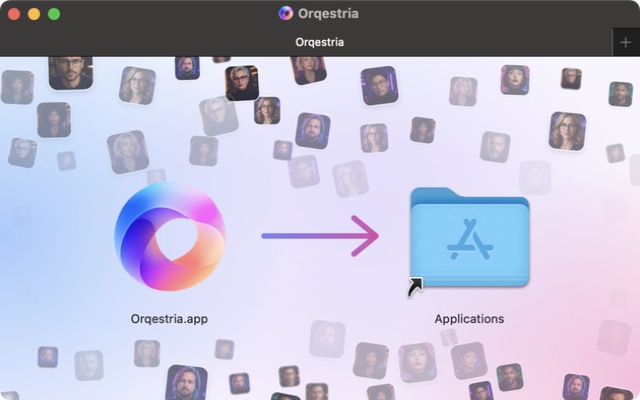
Open the download page linked in the materials. Download the Mac installer, open the .dmg and drag Orqestria into Applications. The installation guide includes screenshots of the current steps. Always use the official Orqestria download.
Follow the beta’s first-open instructions
The current beta is not yet notarized by Apple. If macOS cannot verify the app, follow the illustrated installation guide to allow this download in Privacy & Security. If you see a malware or damaged-app warning, stop and contact support. On a managed Mac, your administrator may need to help.
Activate and connect one provider first
Follow the app’s setup to activate your licence and connect a supported AI tool. Orqestria and the AI provider are separate: you use your own provider account and subscription. Start with one provider, complete its sign-in flow, then confirm it is available in the app before giving the team a real task.
Enlarge screenshot